
Function
A Sub-Domain is the unit area of mesh elements. When generating a mesh, the entire mesh area is the Domain and the mesh elements that partition the mesh are the Sub-Domains. A Sub-Domain can be defined automatically when a mesh is generated or can be defined directly from the Define Sub-Domain dialog box. Sub-Domains are automatically assigned numerical names when created (1, 2, 3....).
The automatically assigned name of each Sub-Domain is created like [1], [2], [3].
Call
From the Main Menu select [Node/Element] tab > [Mesh] group > [Domain] > [Define Sub-Domain]
Input
Domain
Name : The name of the Domain that will be defined with a Sub-Domain. Click to the right to invoke the Define Domain dialog box.
Element Type : The Element Type of the Domain that will be defined with a Sub-Domain.
Material : The material property of the Domain that will be defined with a Sub-Domain.
Thickness : The thickness of the Domain that will be defined with a Sub-Domain.
Sub-Domain
Name : Name of the Sub-Domain
Member Type : Member type of the Sub-Domain. There are four member types available: Slab, Wall, Mat and Sell. Horizontal areas are automatically assigned to Slab and vertical areas are automatically assigned to Wall when a Sub-Domain is generated.
Angle 1 : The major direction of the reinforcement. Enter the rotational angle with respect to GCS X-axis.(See figure 2)
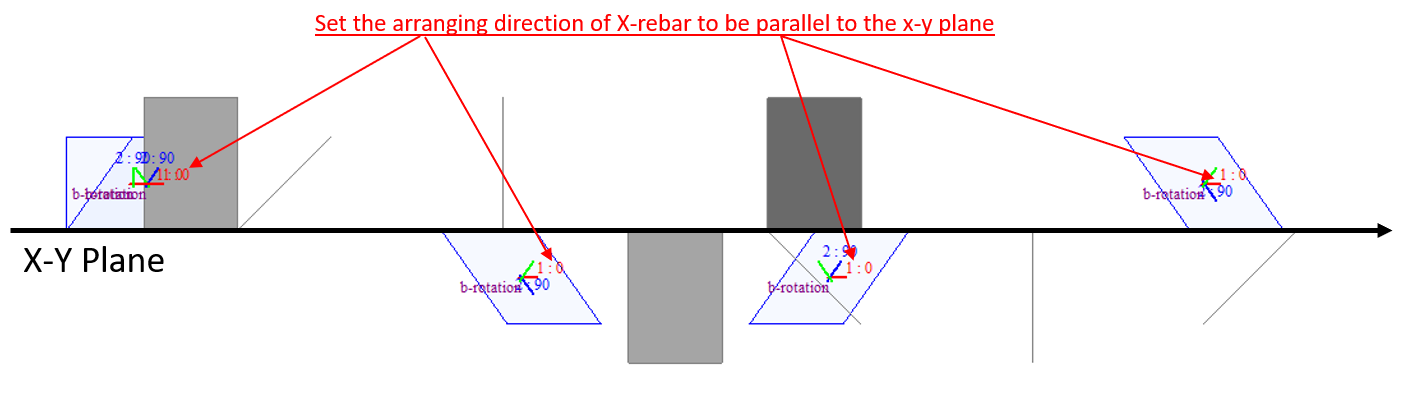
Fig. X-rebar's Direction When Plane angles coincide with the global axis
Angle 2 : The minor direction of the reinforcement. Enter the rotational angle formed from the major direction of the reinforcement (Angle 1).
Use Model Thickness
Specify the thickness of slab for design/checking.
Basic Rebar for Slab/ Mat/ Shell
Specify the basic rebar for slab:
Top-Dir.1 : Enter rebar size and spacing for top slab in Dir.1
Bot-Dir.1 : Enter rebar size and spacing for bottom slab in Dir.1
Top-Dir.2 : Enter rebar size and spacing for top slab in Dir.2
Bot-Dir.2 : Enter rebar size and spacing for bottom slab in Dir.2
Position of top and bottom rebar
1. If the plane angle of the plate coincides with the global axis, it is fixed as follows regardless of the node number.
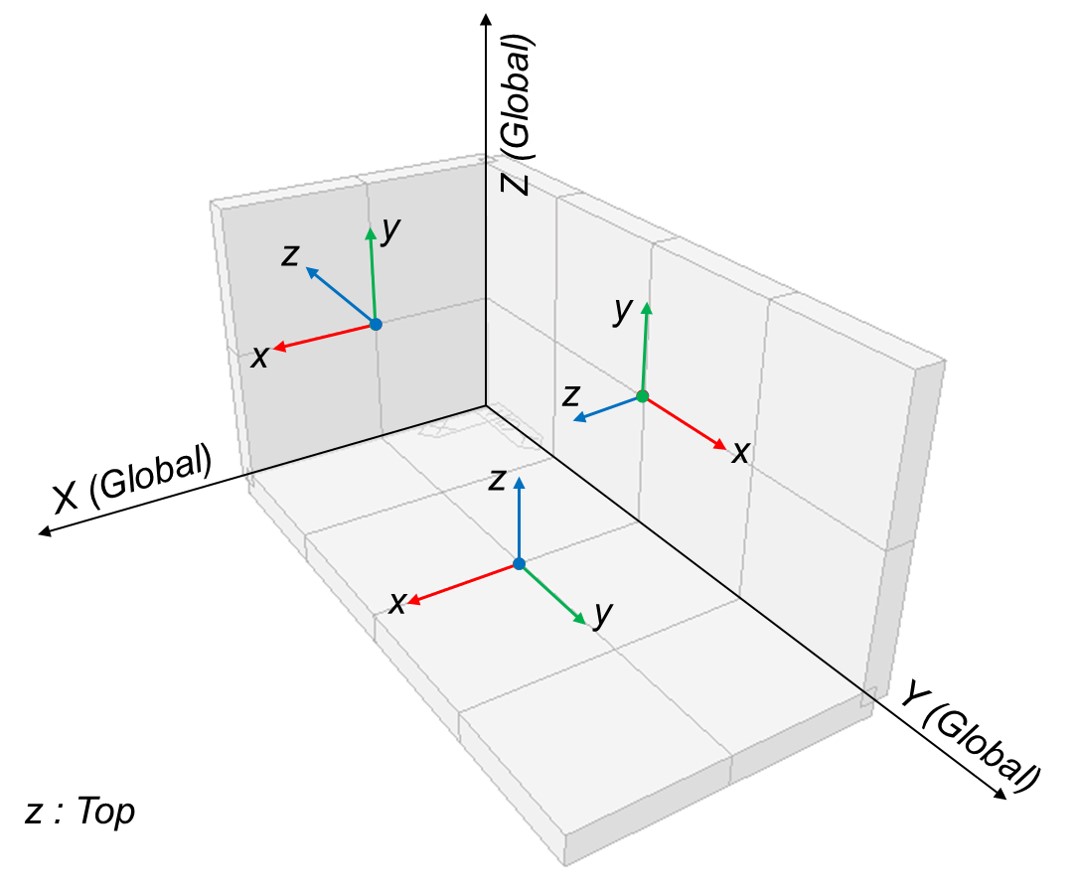
Fig. Slab's top and rebar's Direction When Plane angles coincide with the global axis
2. If the plane angle of the plate does not coincides with the global axis, It is determined according to the procedure below.
- Step 01. Determination of the direction of rotation : It is determined by the direction connecting the node with the smallest number and the node with the smaller number. among the adjacent corners.
- Step 02. Set z-axis : please refer to the follows.
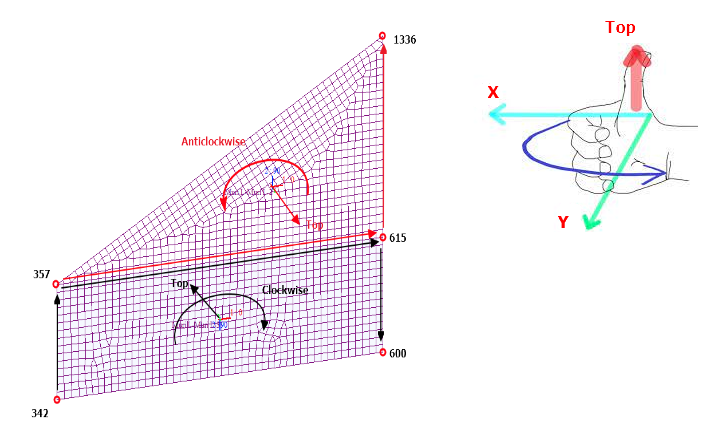
(a) when x-axis(+) is counterclockwise (b) when x-axis(+) is clockwise
Fig. Slab's top When Plane angles don’t coincide with the global axis
Rebar Material for Nonlinear Analysis
Tn order to input the plasticity data of the slab reinforcement, the plastic material must be entered as the Von Mises Model, and the plasticity data must be entered in the material data.
If the nonlinear time history analysis is performed without checking the option, the rebar strength is not considered and only the concrete strength is reflected to perform the analysis.(the plasticity data must be entered in the material data)
Element List
The elements that belong to the Sub-Domain. The elements that belong to the Sub-Domain should be adjacent to each other.
Operation
Add : After defining the Sub-Domain data, select Add to generate the new Sub-Domain. The new Sub-Domain will be listed below, showing the Name, Type, Angle, and Elements.
Modify : Select a specific Sub-Domain from the Sub-Domain list and the data will be displayed in the upper sections of the dialog box. Modify the information of the selected Sub-Domain and click Modify to save the new data.
Delete : Select a Sub-Domain from the list and click Delete to delete the selected Sub-Domain.
Note
A Sub-Domain can be used as a unit for design and is useful for controlling a mesh area, such as selecting or deleting the mesh area with ease.
A Sub-Domain consists of planar elements. However, when a Sub-Domain is selected from a dialog box or the Work Tree, the interior nodes as well as planar elements are selected too. The selected nodes are the ones that are connected only to the planar elements of the Sub-Domain. Therefore, when the Sub-Domain is deleted, nodes of the Sub-Domain can be removed without affecting the other Sub-Domains.
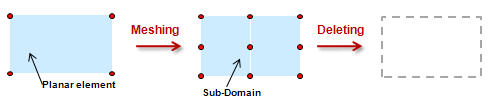
Since the nodes are only connected to the planar elements that belong to the corresponding Sub-Domain, all the planar elements of the Sub-Domain and all the nodes are deleted.

Since the nodes on the periphery are connected to other elements than the planar elements of the Sub-Domain, they are not deleted.

The nodes that are connected to the line elements are not deleted.

Since the nodes are only connected to the planar elements of Sub-Domains, all the nodes are deleted when the Sub-Domains are deleted.